10 Excel and Google Sheets formulas that save hours

Most spreadsheet work is the same few tasks: find a value, add up by condition, count, clean up text, build a list. Ten formulas cover nearly all of it, and every one of them works in both Excel (Microsoft 365) and Google Sheets.
In the examples, column A holds client names, B holds the order date, C the city and D the amount.
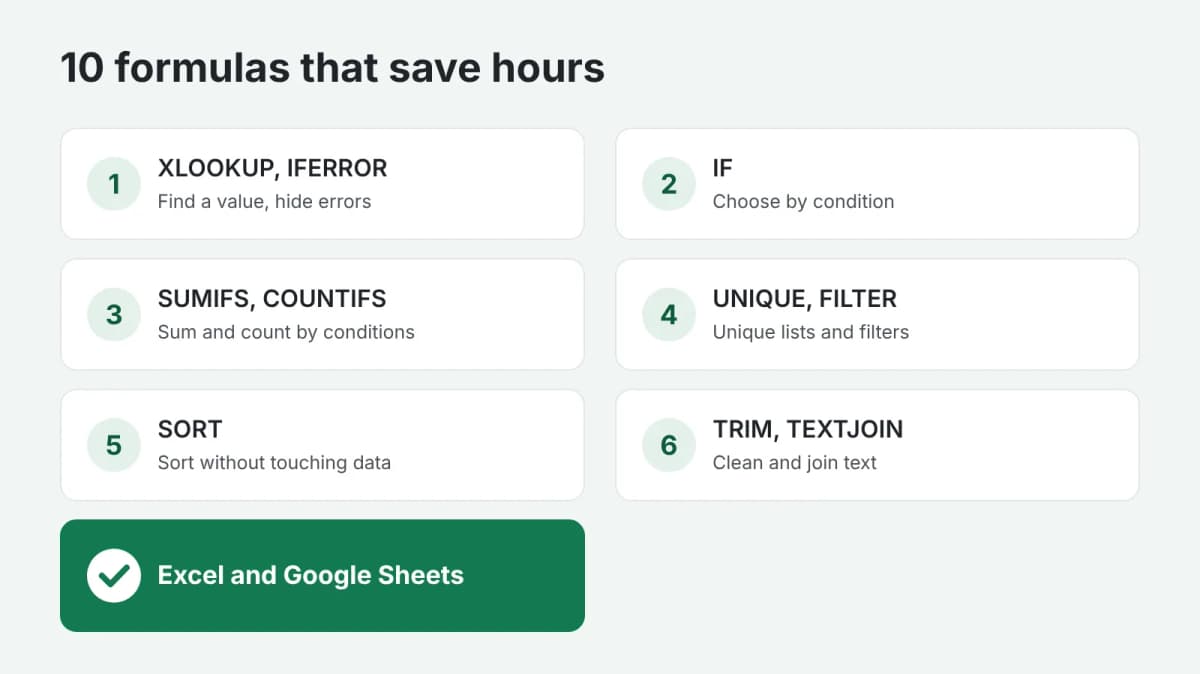
Finding and checking
1. XLOOKUP: find a value in another table
=XLOOKUP("Anna", A:A, D:D) returns the amount from column D for the row where column A is "Anna". It replaces the older VLOOKUP and works in any direction.
2. IFERROR: hide errors
=IFERROR(XLOOKUP("Anna", A:A, D:D), "not found") shows "not found" instead of an error when there is no match.
3. IF: choose by condition
=IF(D2>1000, "large", "regular") labels each order by its amount.
Adding up and counting
4. SUMIFS: sum by one or more conditions
=SUMIFS(D:D, C:C, "Berlin") adds up all amounts for Berlin. Add more pairs for more conditions: =SUMIFS(D:D, C:C, "Berlin", B:B, ">=2026-01-01").
5. COUNTIFS: count by conditions
=COUNTIFS(C:C, "Berlin", D:D, ">1000") counts the large orders from Berlin.
Lists and filters
6. UNIQUE: a list without duplicates
=UNIQUE(C2:C500) gives every city once. Combine it with SUMIFS to build a quick report by city.
7. FILTER: only the rows you need
=FILTER(A2:D500, D2:D500>1000) shows only the large orders, and updates itself when the data changes.
8. SORT: sort without touching the data
=SORT(A2:D500, 4, FALSE) lists the orders from the largest amount to the smallest.
Text
9. TRIM: remove extra spaces
=TRIM(A2) removes spaces at the start and end and double spaces inside. Extra spaces are the most common reason lookups fail.
10. TEXTJOIN: join values into one cell
=TEXTJOIN(", ", TRUE, C2:C10) joins the cities into one line, separated by commas, skipping empty cells.
Two things to know
- In some language versions of Excel the function names are translated, and in some regional settings formulas use semicolons instead of commas between arguments. The logic stays the same.
- Use whole columns (A:A) for small tables, and exact ranges (A2:A500) for large ones: the sheet calculates faster.
In short
These ten formulas replace hours of manual copying, sorting and counting. If your task is more complex, or you need a ready template, order spreadsheet formulas: you describe the task and attach your table, and get working formulas with instructions, or a full template with a script. Payment is released only after you approve the work.