A scan, PDF or photo of a document: how to turn it into Word or Excel
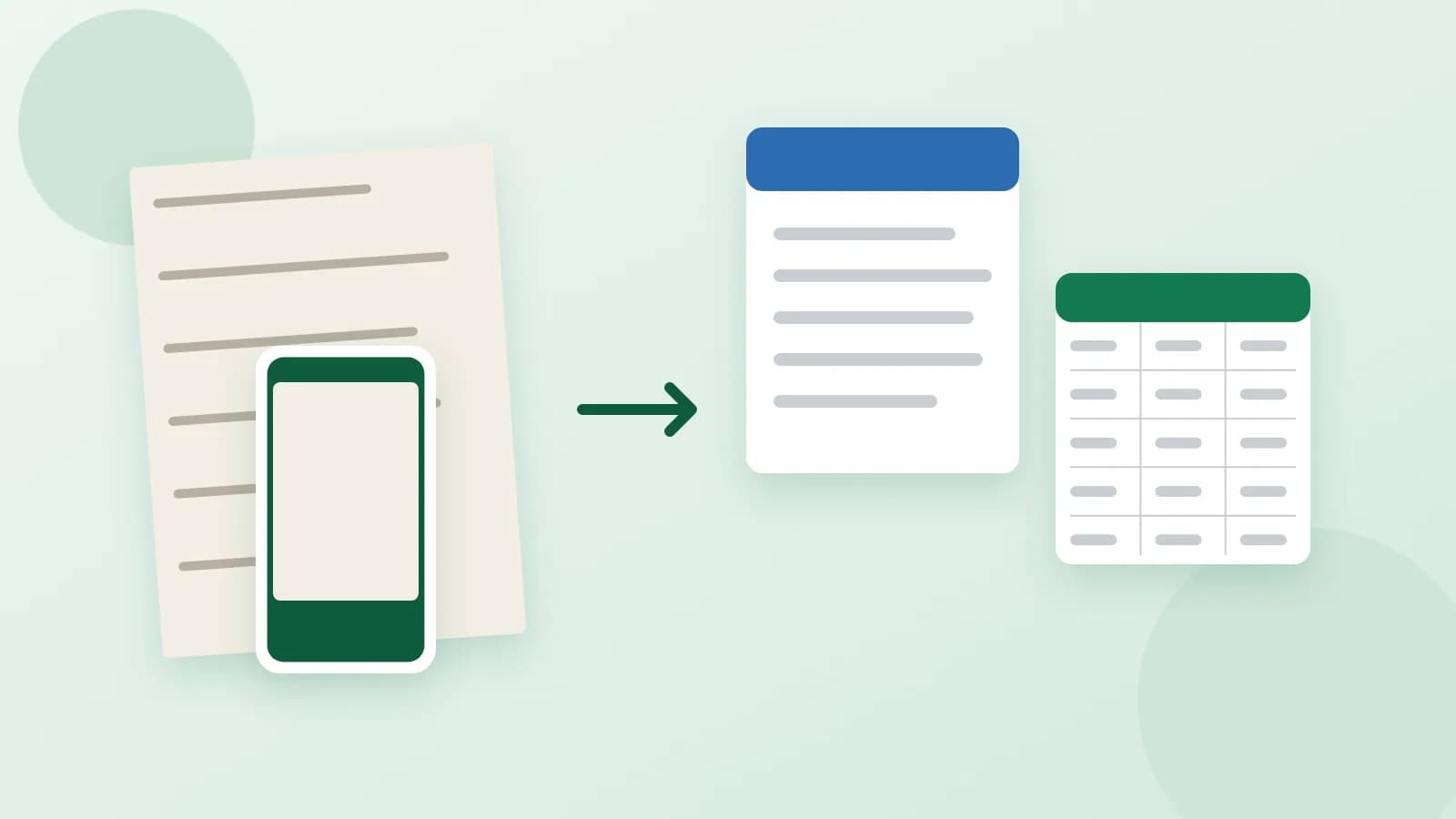
You need to update an old contract, translate a policy or reuse a price list, but all you have is a PDF, a scan or a photo taken on a phone. Copying the text by hand takes hours and copy-paste often breaks lines, tables and numbering. The good news: most documents can be turned back into an editable Word file or a table. What you need depends on what kind of file you have.
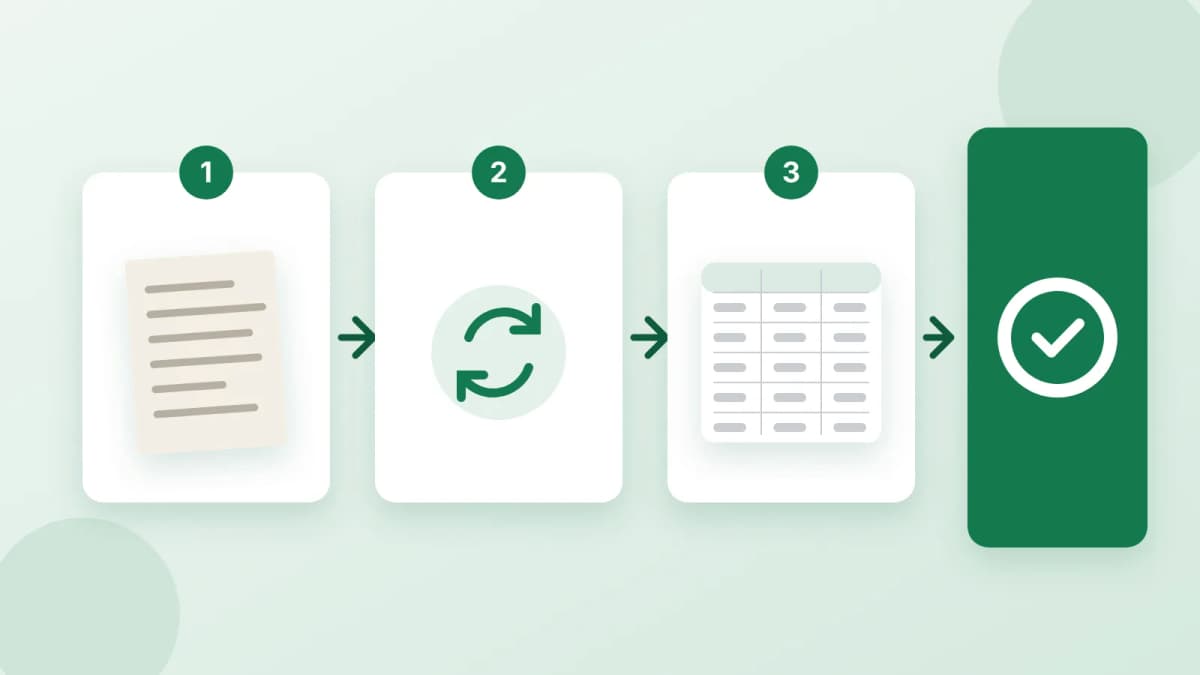
First, find out what you have
Open the file and try to select a word with the mouse:
- A PDF with selectable text. You can highlight and copy words. The text is already inside the file, so it can be rebuilt as a Word document.
- A scan or a PDF made from pictures. Nothing can be selected: each page is just an image. The text has to be typed from the picture.
- A photo of a page. The same as a scan, only quality depends on light and focus.
What a good result looks like
When a PDF becomes a Word file, the goal is not a copy of the page but an editable document:
- The full text, word for word, without retyping mistakes.
- Real headings, so you can move through the document and change styles.
- Numbered clauses and bullet lists that keep counting when you add a point.
- Tables as tables, not as text separated by spaces.
- No leftovers: page headers, page numbers and lines broken in the middle of a sentence are removed.
Pictures, charts, multi-column layouts and exact fonts usually do not carry over. Plan to add them back yourself if you need them.
Word or Excel?
- Word is for text you will read and edit: contracts, policies, letters, reports.
- Excel is for data you will count, sort or filter: invoices, statements, price lists, tables from a report.
If a document has both, decide what you will really use. A report with three tables can stay in Word; a stack of twenty invoices belongs in a spreadsheet.
Taking good photos and scans
- Flat page, good light, no shadows from your hand or phone.
- Whole page in the frame, shot straight from above, not at an angle.
- Sharp text: zoom in on the photo before you send it. If you cannot read a word, nobody can.
- Two pages at once, like a book spread, is fine if the text stays sharp.
Handwriting can be typed too, if it is legible. Unclear words are usually marked so you know what to check.
What to say when you send the file
- What must stay exactly: clause numbering, tables, footnotes.
- What to drop: page headers, a watermark text, a cover page.
- The language of the document.
- What the file is for: editing, translation, an update.
Do not send password-protected files: remove the password yourself if you have the right to. Identity documents such as passports are not typed.
In short
Check whether the text can be selected, choose Word for text and Excel for data, and send clear pages with a short note on what to keep. If you would rather not retype anything, order a PDF to Word conversion: you send a PDF with selectable text and say what to keep, and get an editable Word file and a clean PDF copy. For scans and photos, order text typing from images: you send pictures of the pages, and get editable text with headings, lists and tables, in the largest package also as an Excel file. Payment is released only after you approve the work.